


Quotes and sales
How to use an offer template
Uploading and updating the branded background design that sits behind every quote you send.
Where to find it
OffersOffer Template
The offer template is the branded design that sits behind every quote you send: your logo, colours, contact details and any accreditation marks. In a market where the patient is holding quotes from three clinics, how the document looks argues alongside the price.
You upload it once and every quote from then on uses it — nothing extra to do per quote.
Step by step
- Click on the Offers button under Offer Template from the menu on the left.
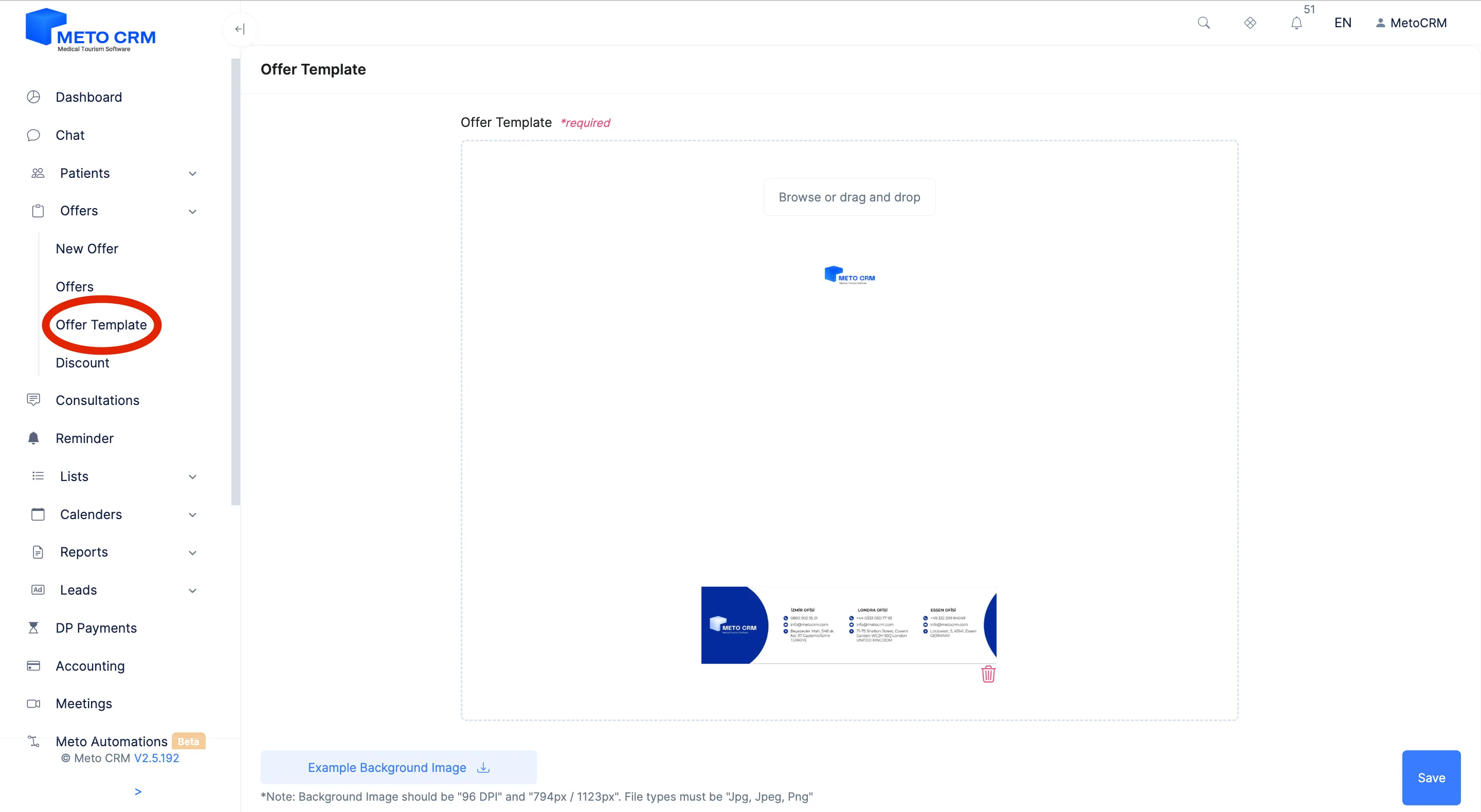
- On the page that opens for submitting the offer, you can upload a customized file with your company's logo on it. After updating the fields you want to update on the page that opens, click the Save button at the bottom.
Tips and common mistakes
- Tip Keep fixed prices, campaign dates and personal names out of the template. Those change, and then the template has to be rebuilt; leave only the corporate constants.
- Tip Create a test quote after uploading and check the PDF output — margins and logo placement can look right on screen and shift in print.
Frequently asked questions
Can I use different templates for different brands?
The template is defined at tenant level. If you run several brands, talk to sales about your requirement.
If I change the template, do old quotes change too?
The template is applied when the output is produced, so exporting an older quote after the change gives you the new design.