


Channels and messaging
How to connect the call centre (Zadarma)
Connecting a Zadarma number to MetoCRM: API keys, the number record and assigning extensions to consultants.
Where to find it
IntegrationCall Center
The phone is where medical tourism deals close. Calls made from personal mobiles leave no record and no measurement. The Zadarma integration connects the clinic's virtual PBX to MetoCRM: the call lands on the patient record, and you can see who called and for how long.
If you do not have a number yet, start with the Zadarma number guide.
Before you start
- An approved Zadarma number plus the Pub Key and Sec Key from the Zadarma panel.
- The list of consultants who will make calls — each one needs an extension.
Step by step
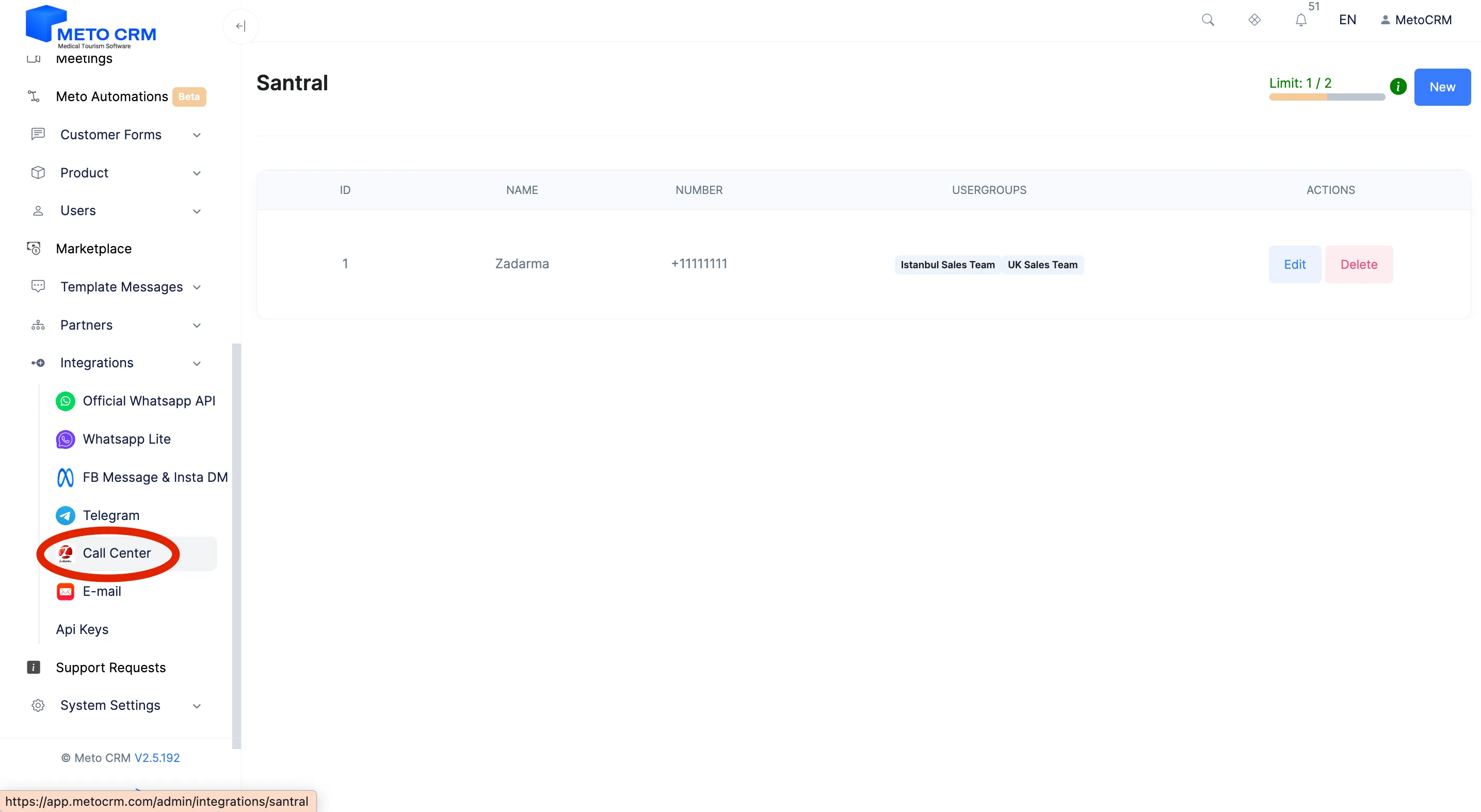
- MetoCRM Integration: Access the MetoCRM panel. Click on Integration > Call Center in the left main menu.
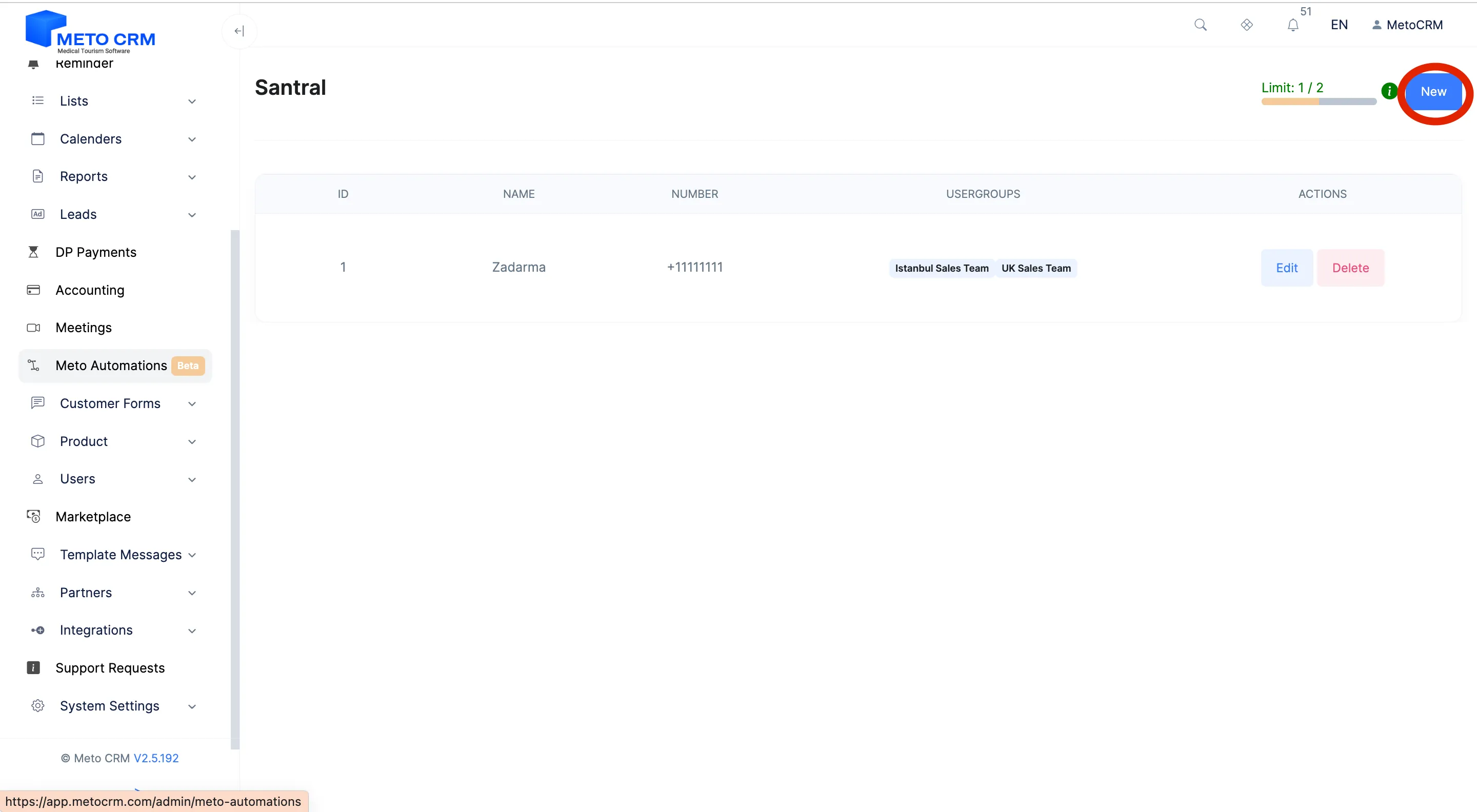
- Press the New button located in the top right corner.
- Select Zadarma from the API dropdown menu.
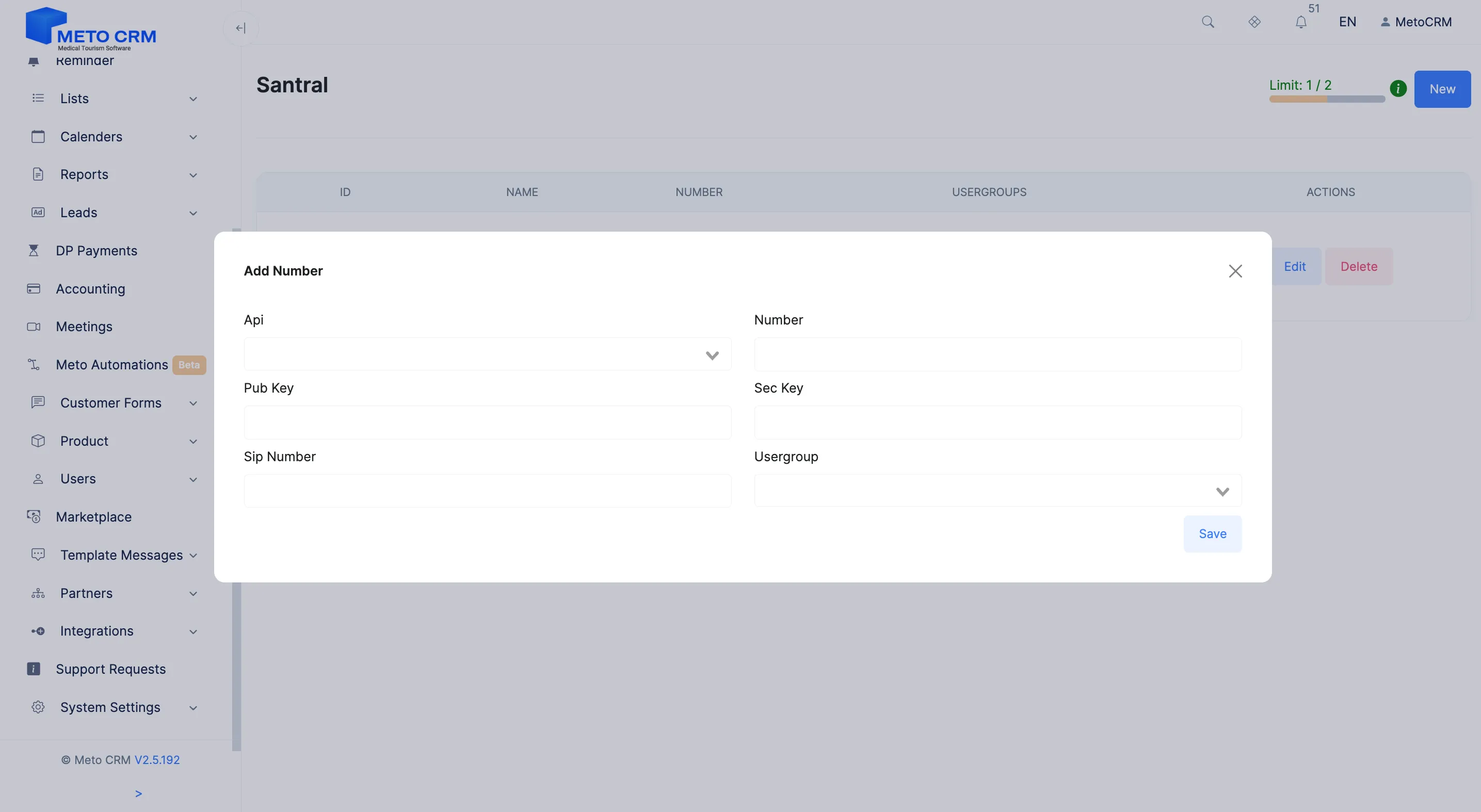
- Copy and paste your approved Zadarma number into the "Number" field (+country code). Log in to your Zadarma panel to obtain the Pub Key and Sec Key information. In the Zadarma panel, navigate to "Settings" > "Integrations and API" > "Keys and API." Copy the information displayed on the screen. If it's displayed in asterisks, click on the "CHANGE KEYS" button and follow the instructions to reveal the keys without asterisks. Then copy the Pub Key and paste it into the "Pub Key" field in the Meto panel. Copy the information from the "Secret" field in the Zadarma panel and paste it into the "Sec Key" field in the Meto panel. Go back to the Zadarma panel and navigate to the homepage. Click on "Virtual Numbers" and copy the SIP number from the column of the number you'll be using. Paste this SIP number into the designated field in the Meto panel. In the "Usergroup" field in the Meto panel, select which groups you want to have access.
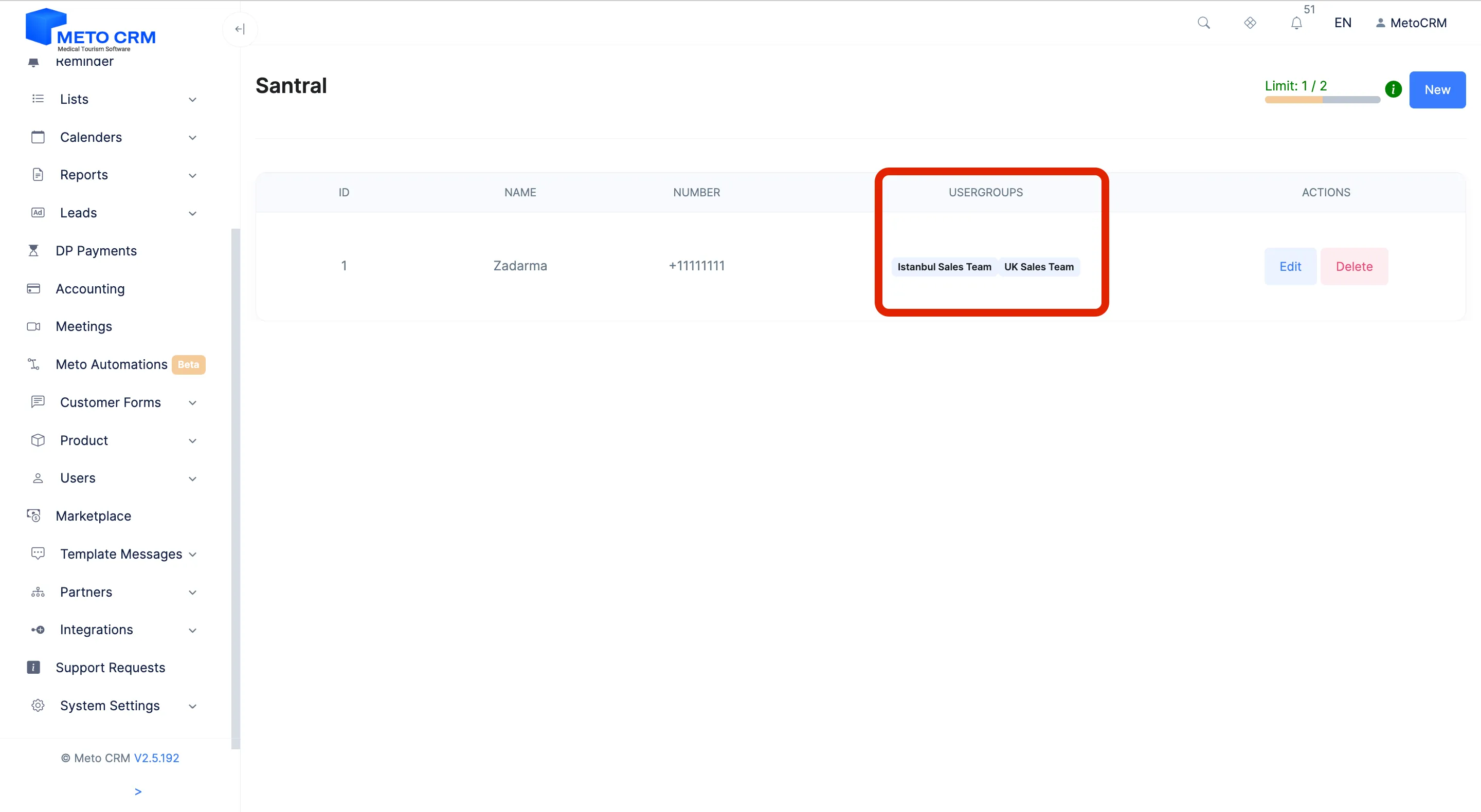
- Click the "Save" button to complete the process. If you want to make changes to the connection, press the Edit button or if you want to delete it, press the Delete button.
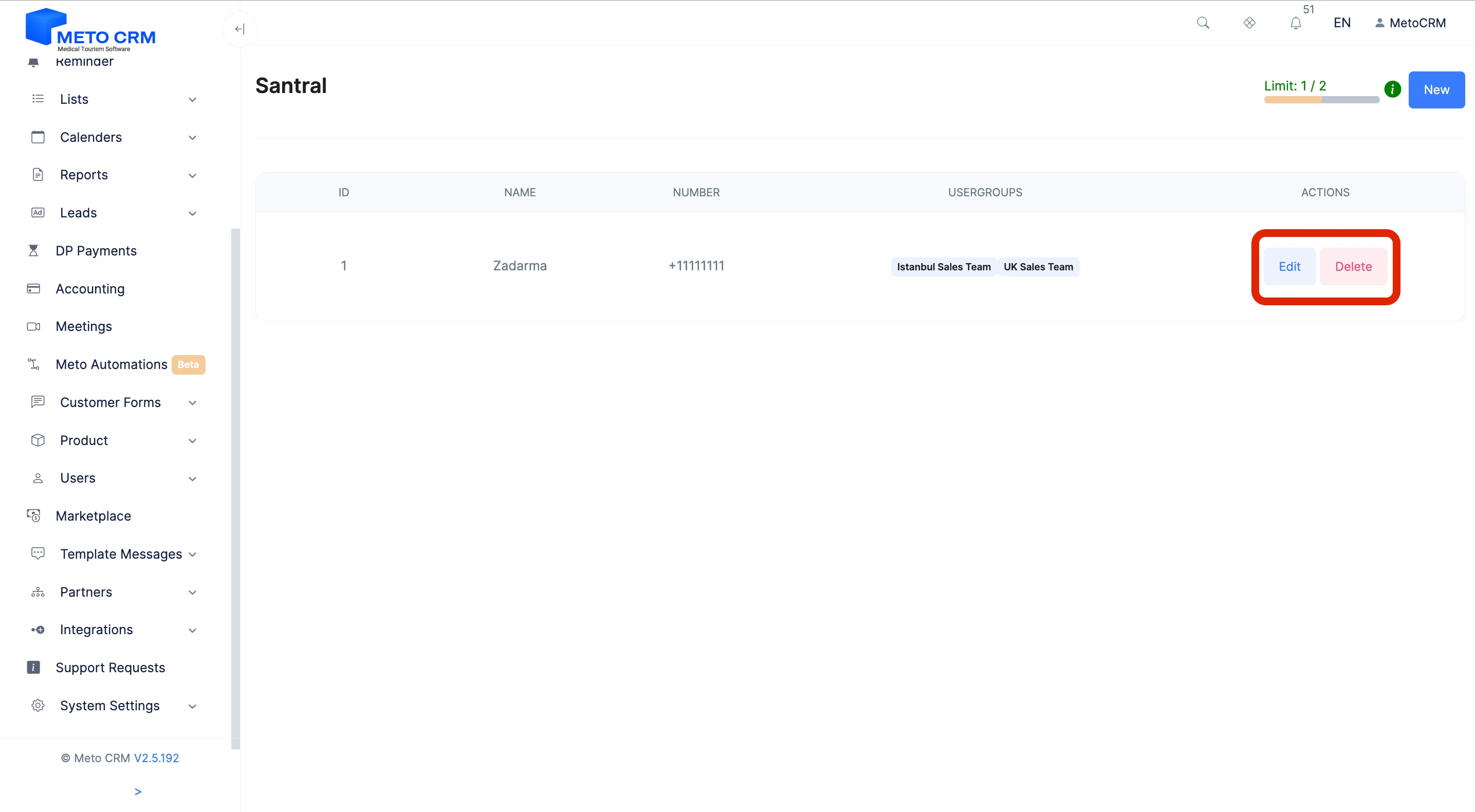
- !! Number integration is now complete. Don't forget to assign internal numbers to the users you want to make calls. If you're unsure, refer to the internal assignment documentation. Go To Document
Tips and common mistakes
- Careful After connecting, do not forget to assign extensions. A consultant without one cannot dial from the panel, and this is the most commonly skipped step of the whole setup.
- Tip Enter the number with its country code (+90…). Without it the number will not match on the Zadarma side.
Frequently asked questions
Are calls recorded?
That depends on your setting in Zadarma. With recording on, MetoCRM attaches the call to the patient record, and call transcript analysis can turn the conversation into text.
Whose phone rings on an inbound call?
That is decided by the routing rules in your Zadarma PBX. MetoCRM logs the call and ties it to the patient; which extension rings is configured on the PBX side.
Can I use a PBX other than Zadarma?
The ready-made integration is for Zadarma. For a different PBX, talk to sales about the API and webhooks.