


Patient management
How to bulk upload data
Importing patients and leads from an Excel or CSV file — from the Leads screen and from the Customers screen.
Where to find it
Ads AutomationLeads
Bulk upload brings a list of patients or leads into the system from an Excel or CSV file. Three situations account for most of it: migrating from another CRM, importing older ad submissions exported from Meta, and lists collected at a fair or event.
There are two entry points: the Ads Automation › Leads screen, where records arrive as leads, and the Customers screen, where they open as patient cards. Which one you use depends on whether you want to screen them by hand.
Before you start
- The first row of your file must carry column headings — mapping is done against them.
- Write phone numbers with the country code; numbers uploaded without one cannot receive WhatsApp messages.
Step by step
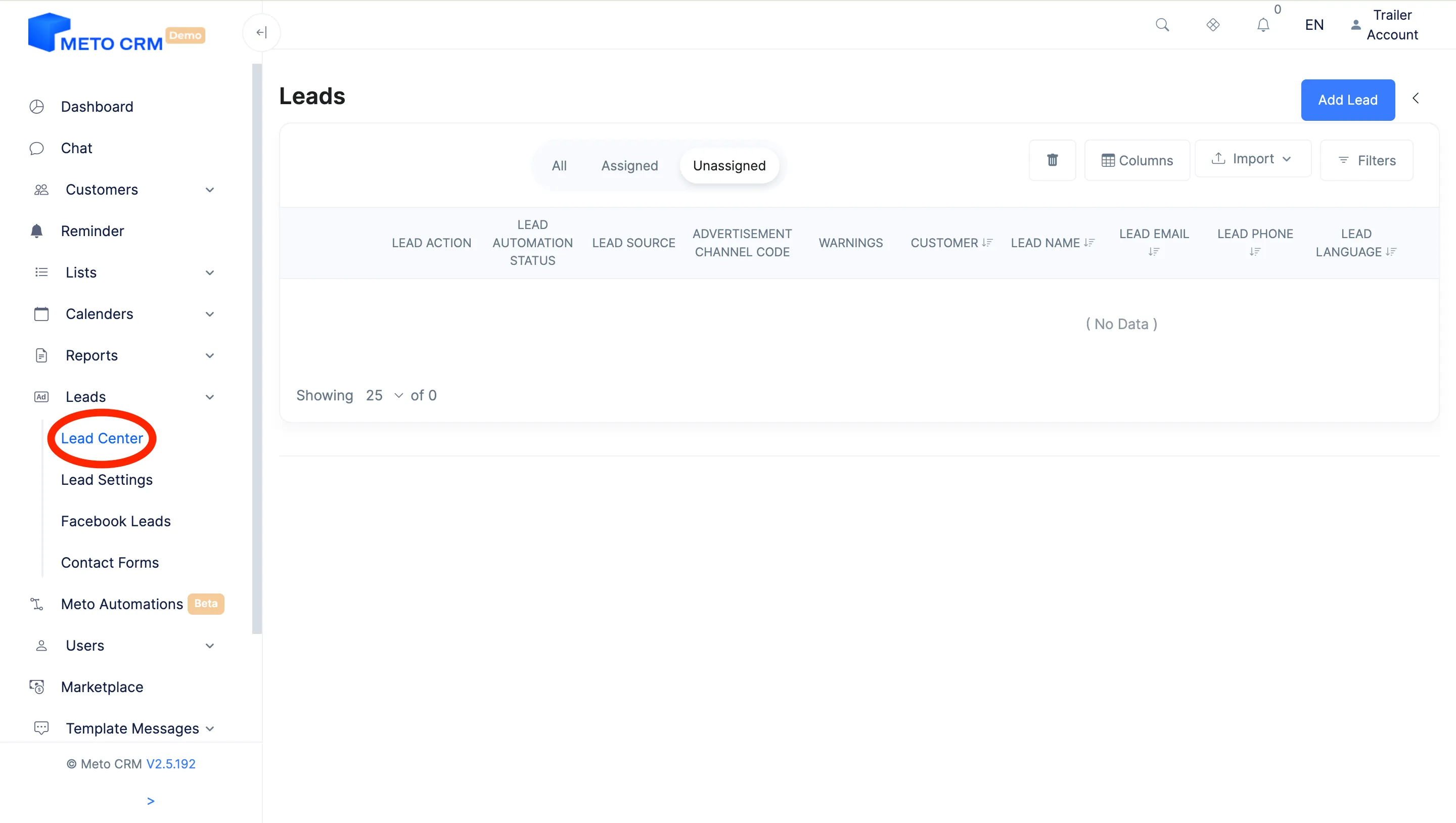
- You can do Bulk Data Loading in two ways. The first method is; Click the Leads Center button under the Leads button from the left menu.
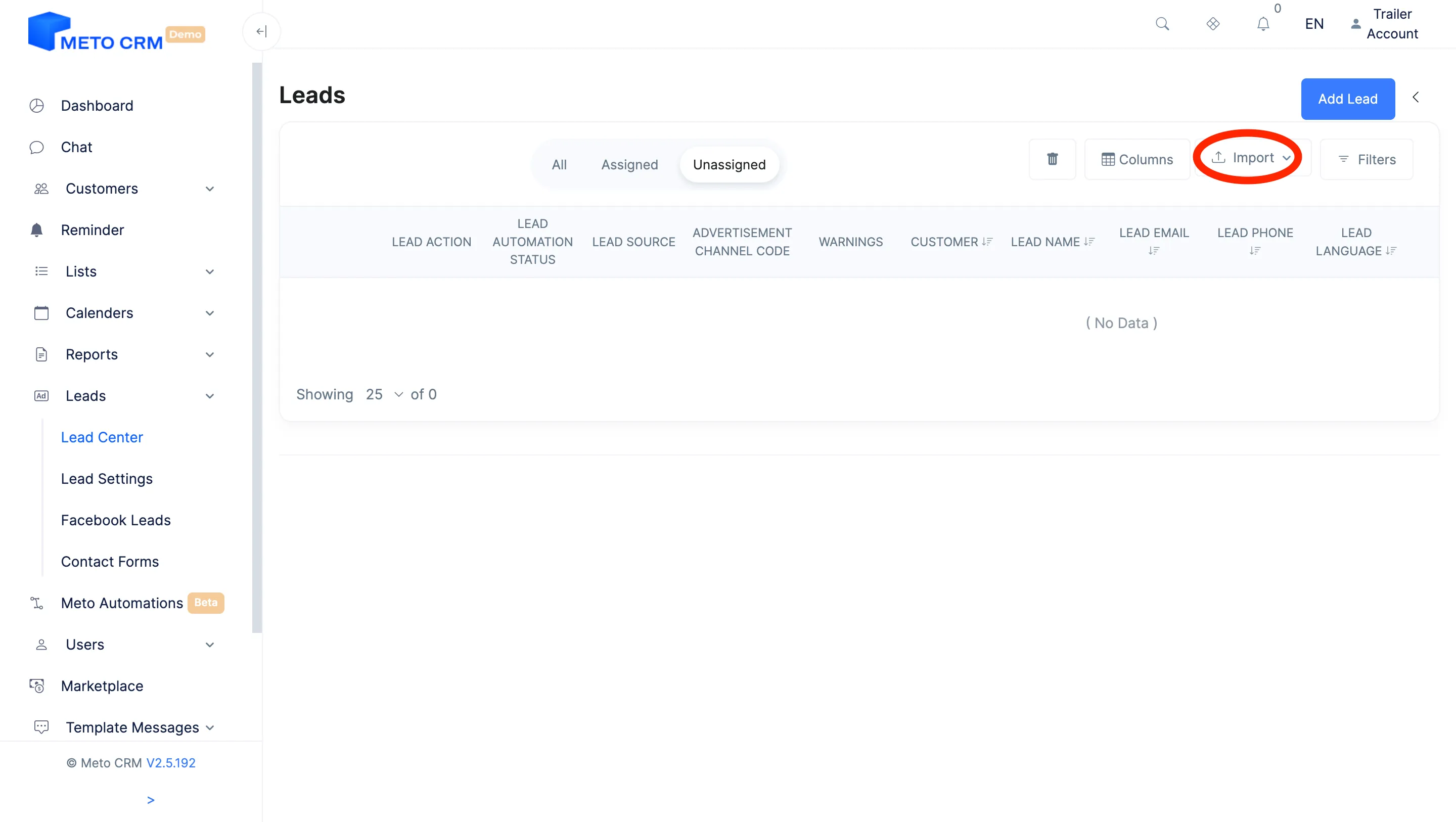
- Click the Import button in the upper right corner of the opened pages.
- And then you can upload your given file by selecting your file and pressing the Upload button. If you want the data you upload to be automatically saved in the customer section, you can click this area. The second way is to upload data from the import section on the right side of the page that opens by pressing the Customers button.
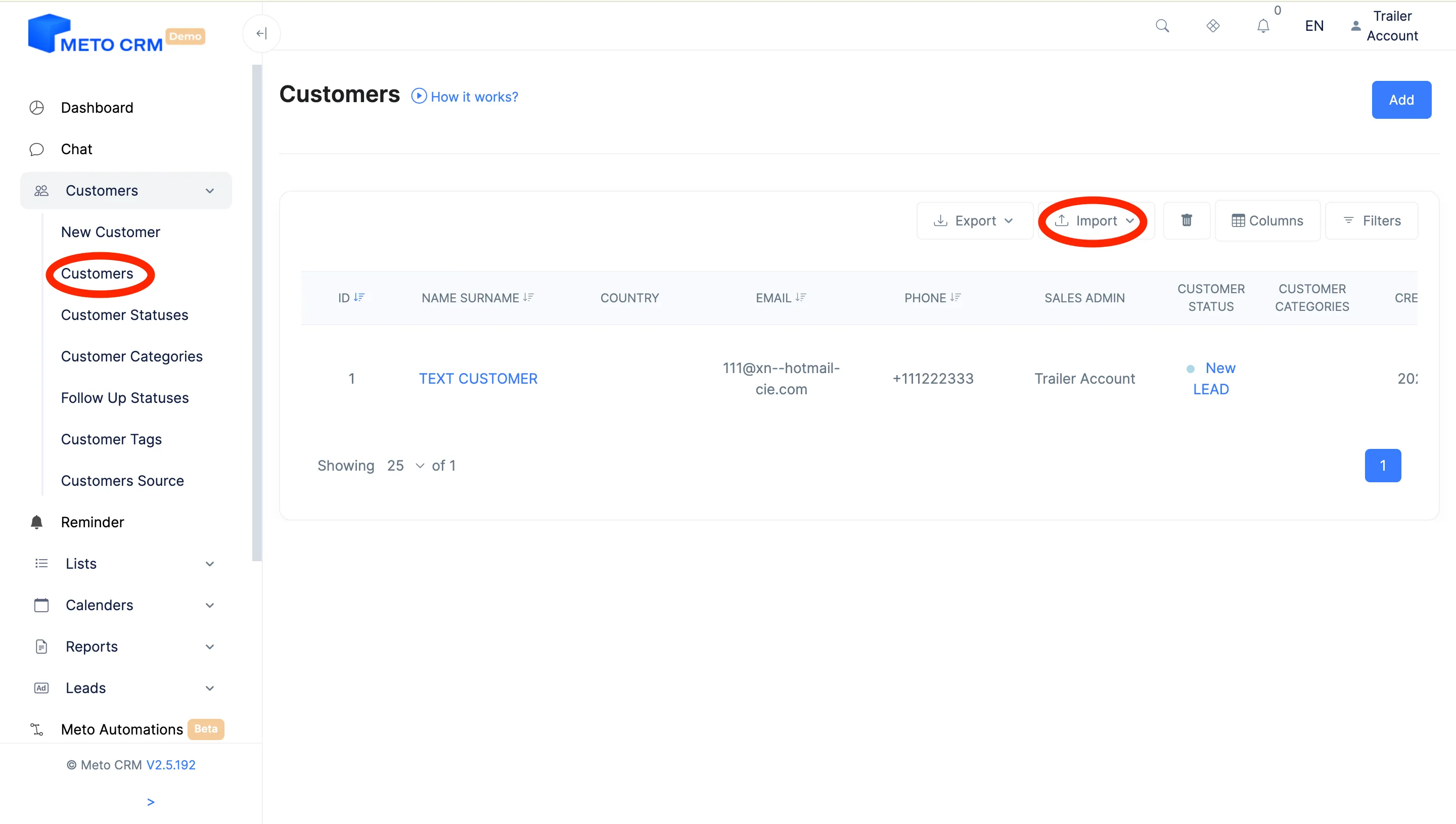
- And then you can upload your given file by selecting your file and pressing the Upload button. If you want the column headings in your file to match the data in the system, you can tick this field.
Tips and common mistakes
- Tip Tick "match column headings" during upload and your file's headings are mapped to the system's fields. Without it, a file whose column order differs writes into the wrong fields.
- Careful Upload a test file of 20-30 rows first and check the result. Cleaning up a bad five-thousand-row import costs far more than the five minutes the test would have taken.
- Tip Give imported records a distinctive tag such as "import-2026-09". If anything goes wrong you can filter on it and fix everything in one go.
Frequently asked questions
What happens if the same patient is uploaded twice?
Check for duplicates by phone number after the upload. This is another reason to start with a test file.
Can I undo a bulk operation?
Bulk status changes, transfers and tagging can be undone conditionally: records that have not changed since are reverted, records that have are skipped with the reason shown in the list. Side effects such as triggered automations and notifications cannot be undone.
A bulk operation shows a "stuck" warning.
That appears when an operation has processed no new records for five minutes. It is not data loss: the system resumes where it left off and never reprocesses completed records. You can also press Resume yourself.
Do automations run during a bulk status change?
Side effects — chat notifications, automations, AI and Meta signals — are off by default; you pick which automations may run before applying. Automations that themselves change a status cannot be selected there; run those per patient.