


Leads and advertising
How to create a Meto automation
Building an automation that answers an incoming lead with a WhatsApp message based on its ad code.
Where to find it
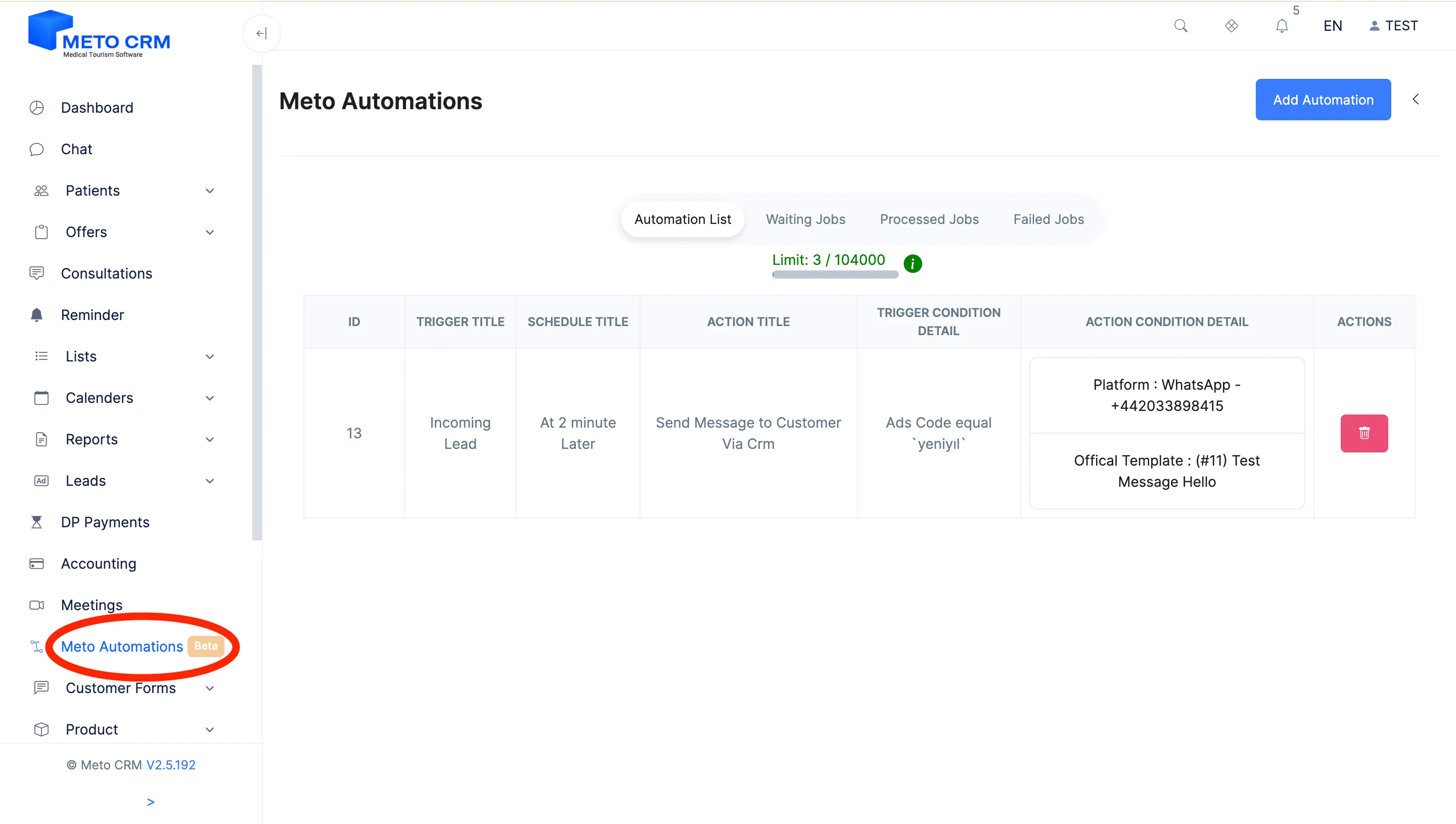
Meto Automations
In medical tourism response time is conversion rate: leave an ad lead five minutes and they have already written to three other clinics. An automation closes that gap — the welcome message goes out the second the lead lands, so the conversation has already started by the time a consultant picks it up.
An automation has two parts: a trigger (when this happens) and an action (do this). The example in this guide is the most-used setup of all: send a chat template to a lead arriving from a particular ad code.
Before you start
- The chat template you want to send must exist.
- The ad code in the trigger has to match exactly the name you gave when connecting the ad form.
- The line the message goes out on must be connected and working.
Step by step
- Open the Meto Automations page from the menu on the left.
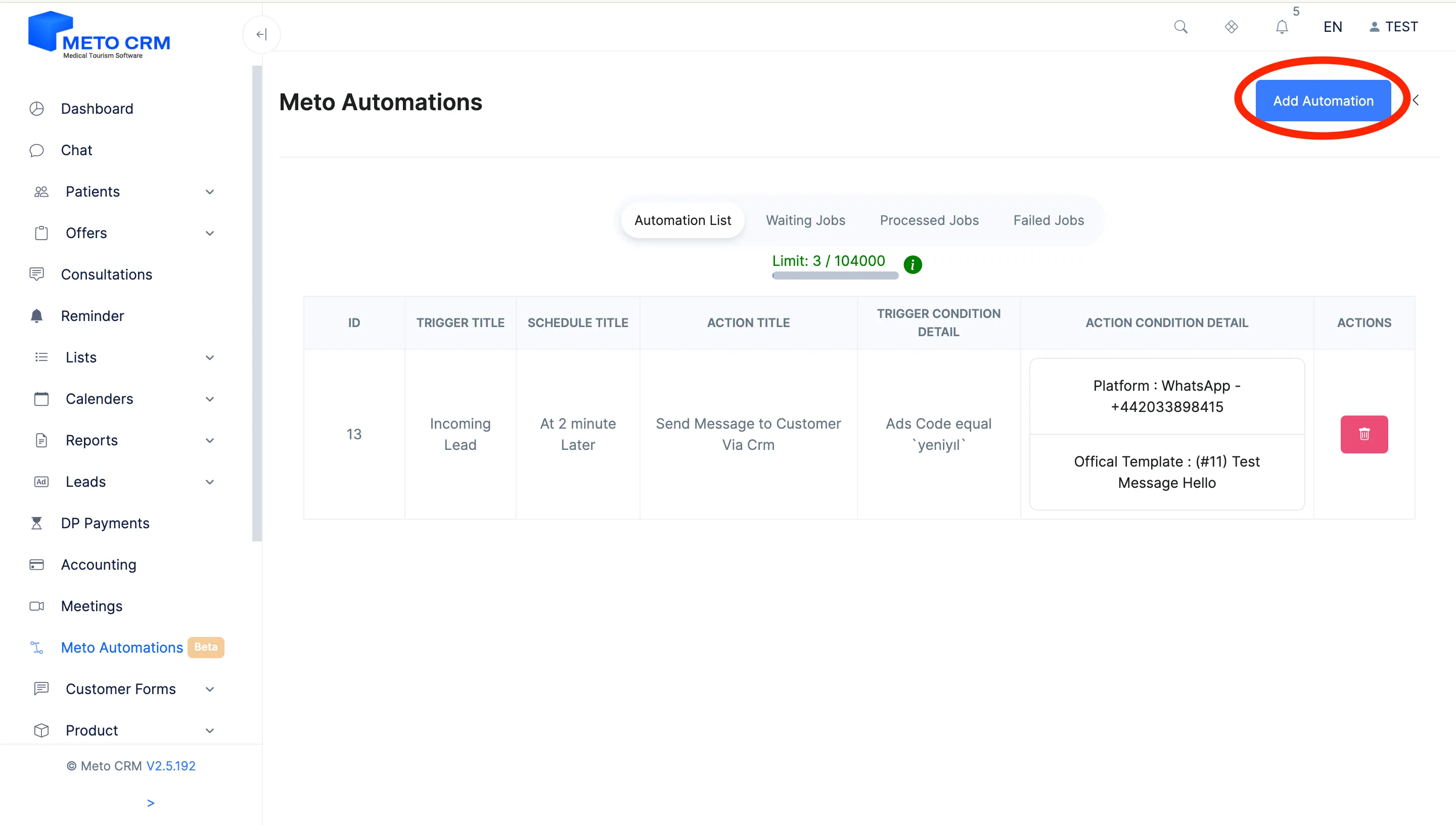
- Click on the Add Automation button at the top right of the screen that opens.
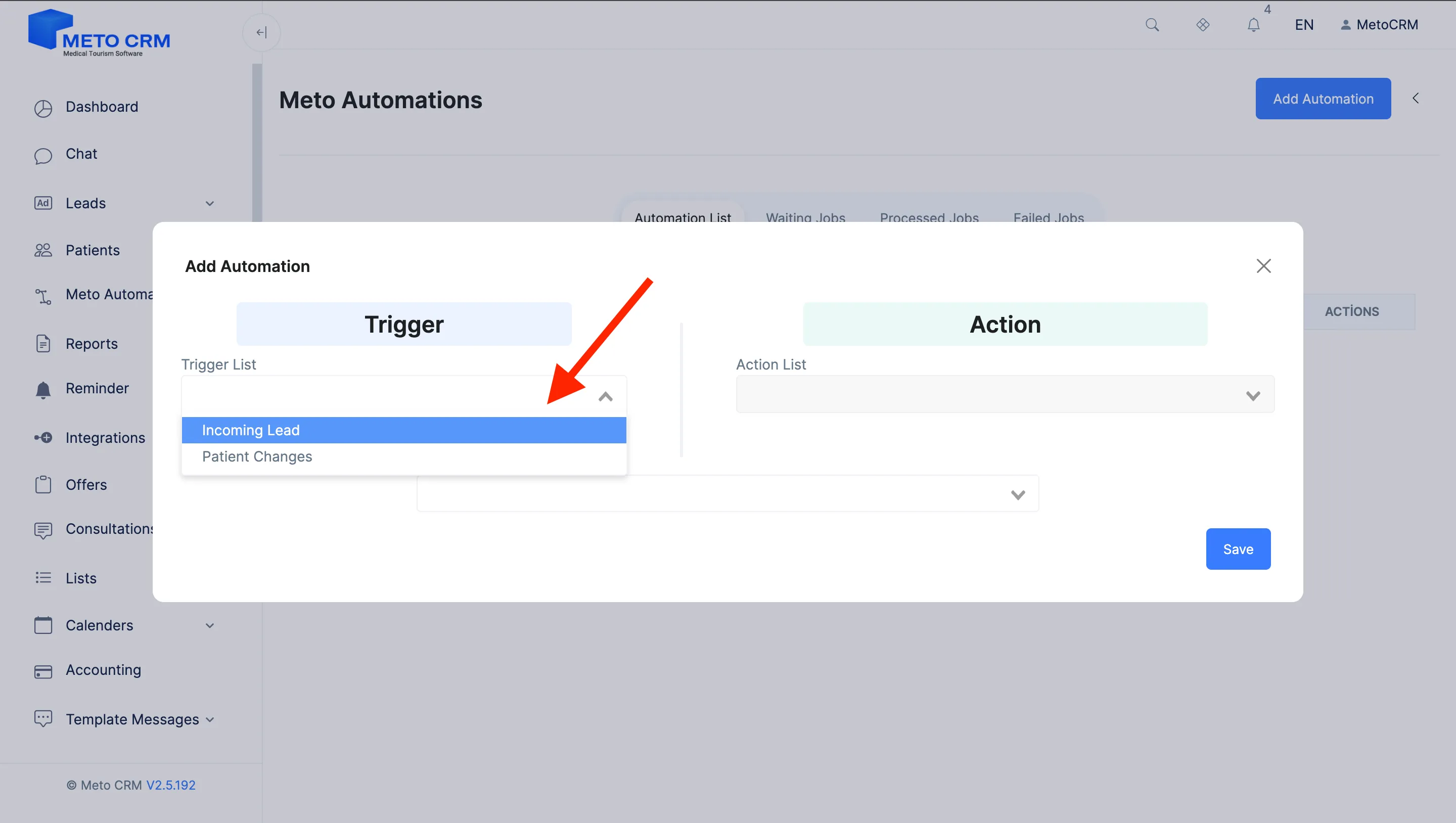
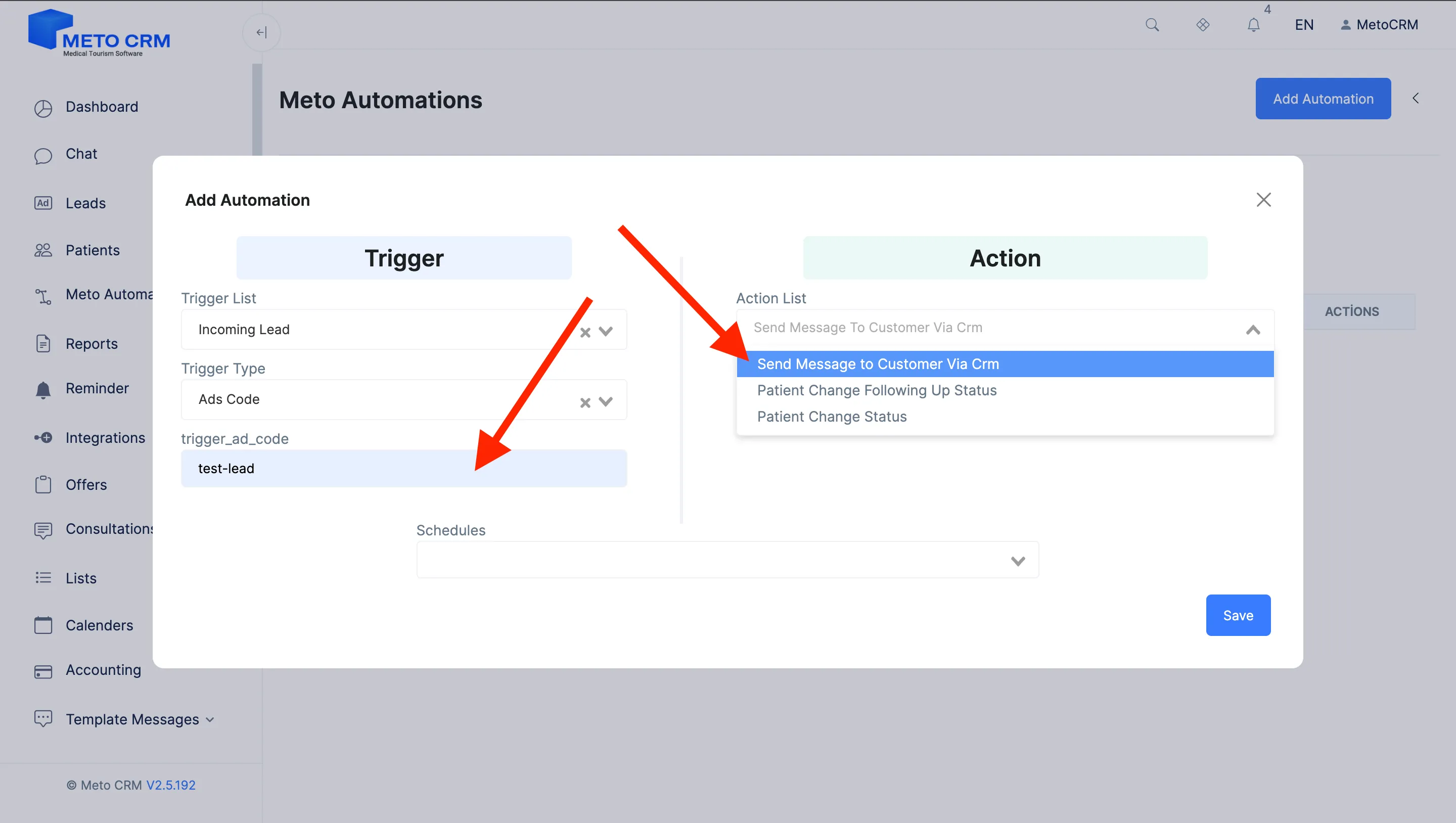
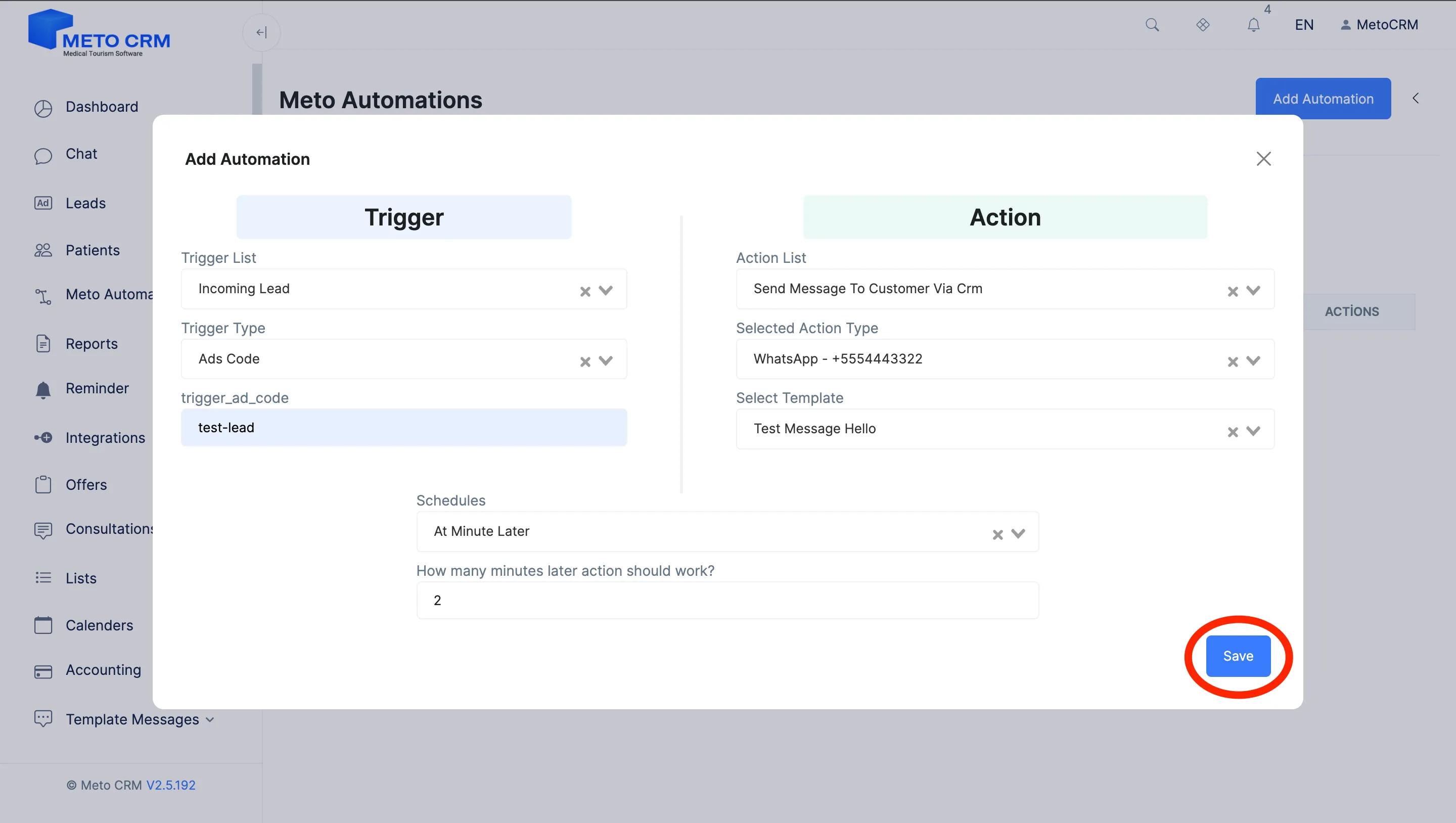
- In the Trigger section on the opened screen, select " Incoming Lead " in the Trigger List.
- Select " Ads Code " as the Trigger Type field.
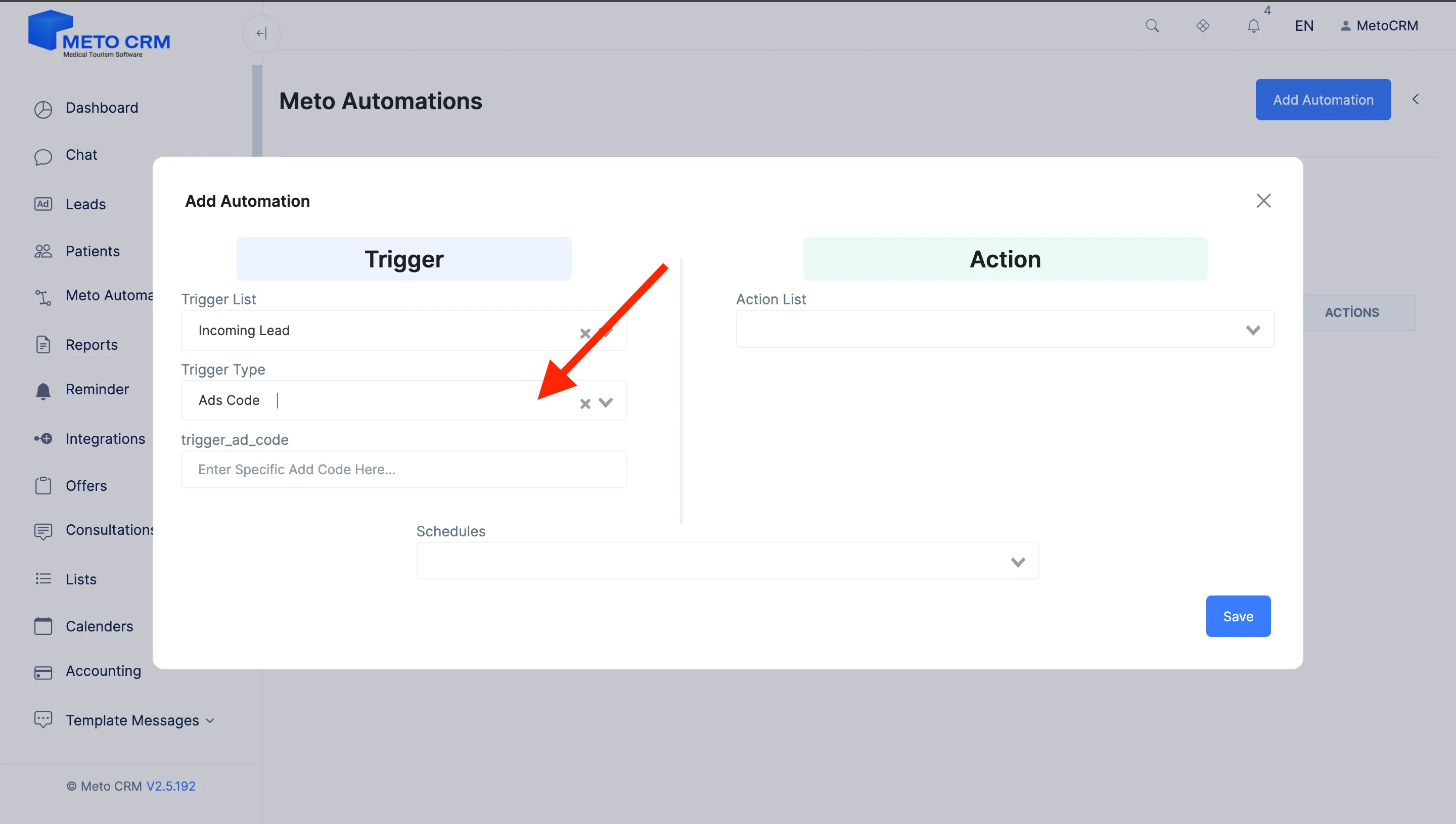
- Then, in the "Trigger Ad Code" section, enter the name you've given to the advertisement form connected to MetoCRM (Advertisement Code), and proceed to the Action section now. Click on the "Send Message to Customer Via CRM" in the Action List field.
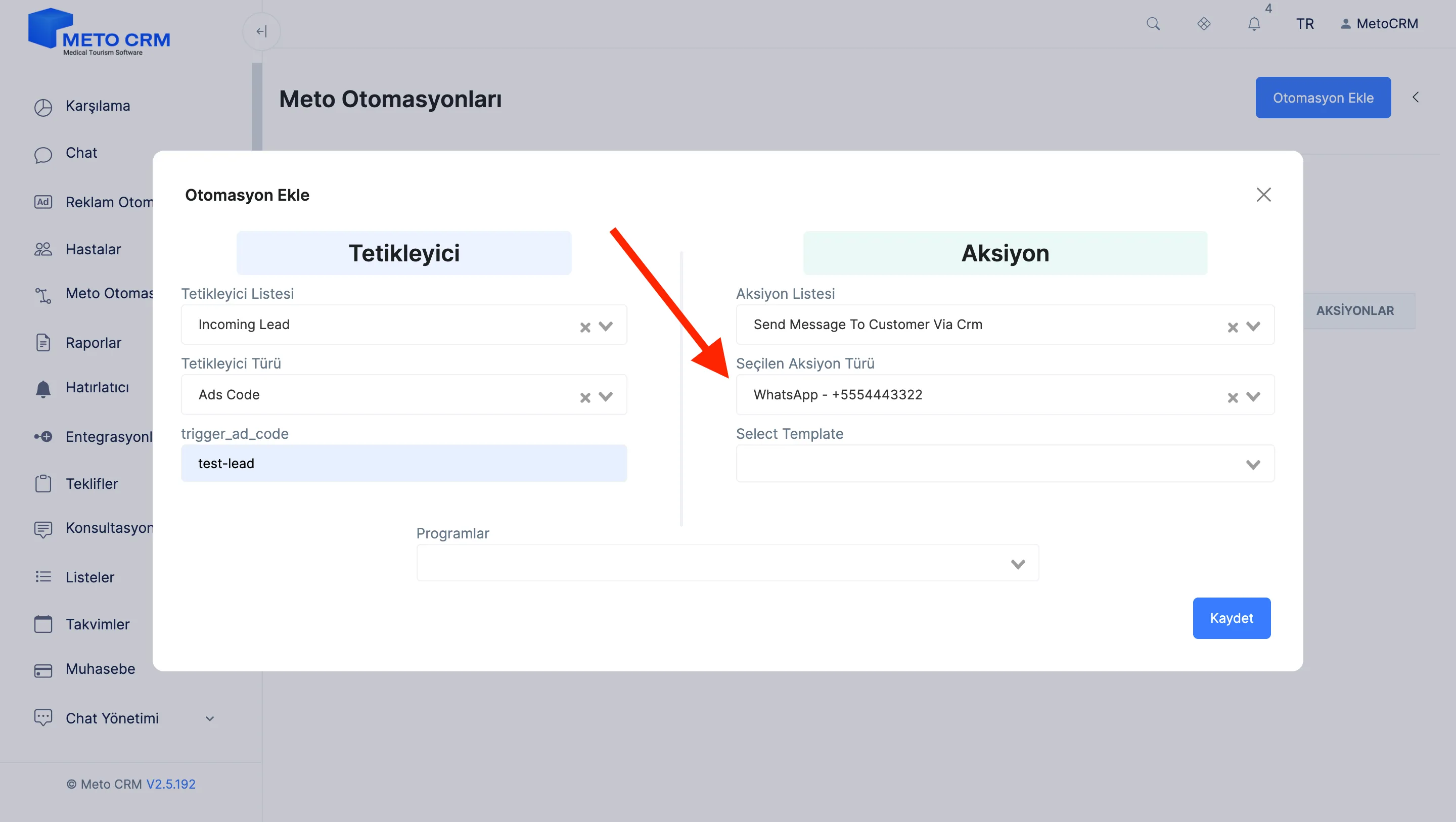
- Now, select the number with which you will respond to the incoming lead from the Selected Action Type section.
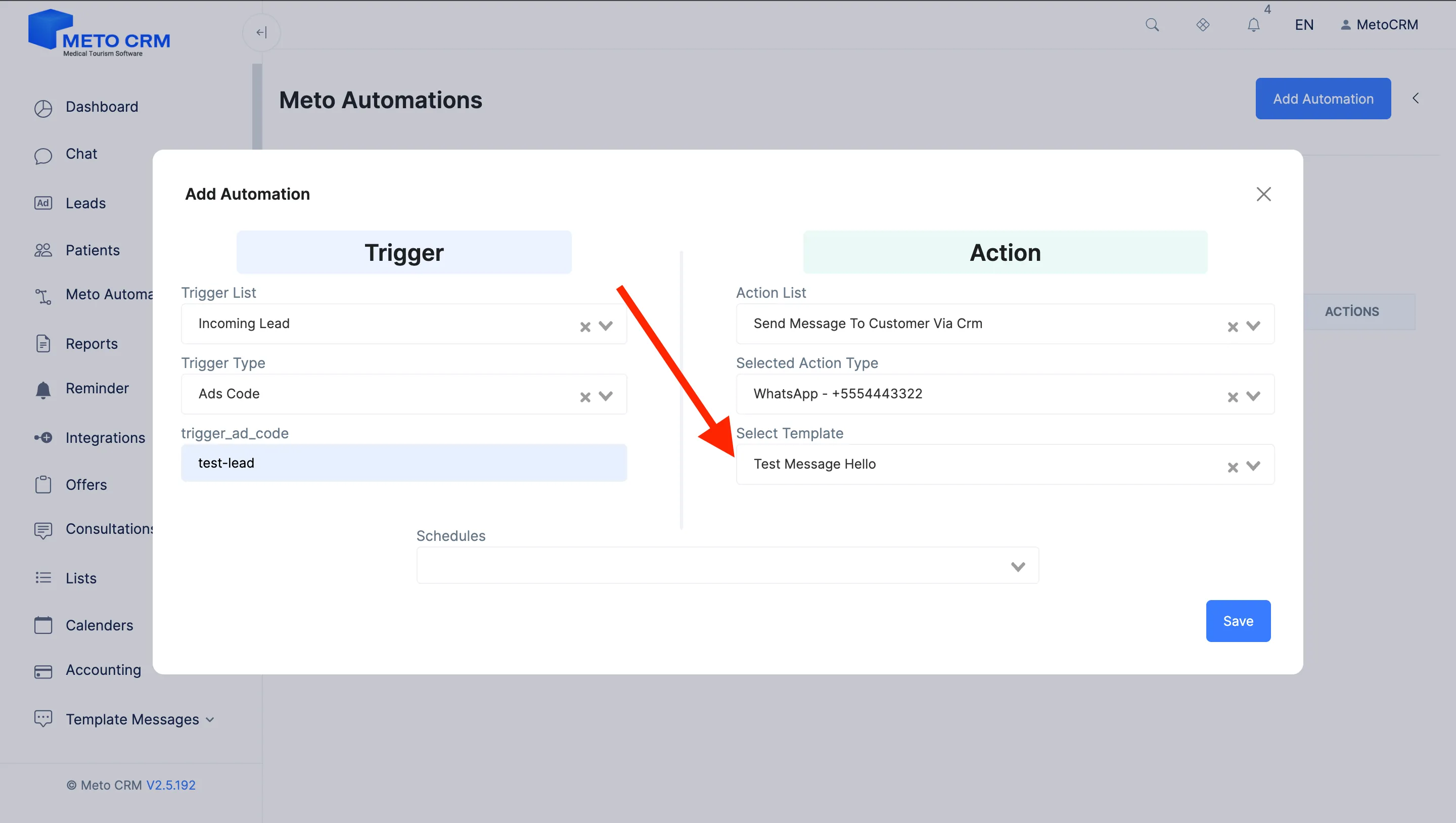
- Then, you can select the predefined messages you created within the system from the Select Template field and send the selected template message to the leads coming from the connected advertisement code. How to Create a Template Message; Click Here
- Almost there! Finally, in the Programs section, if you want an automatic message to be sent to incoming leads instantly In time or after a specific period later (you can customize this according to your workflow), select " At Minute Later " and enter the designated time in the opened field.
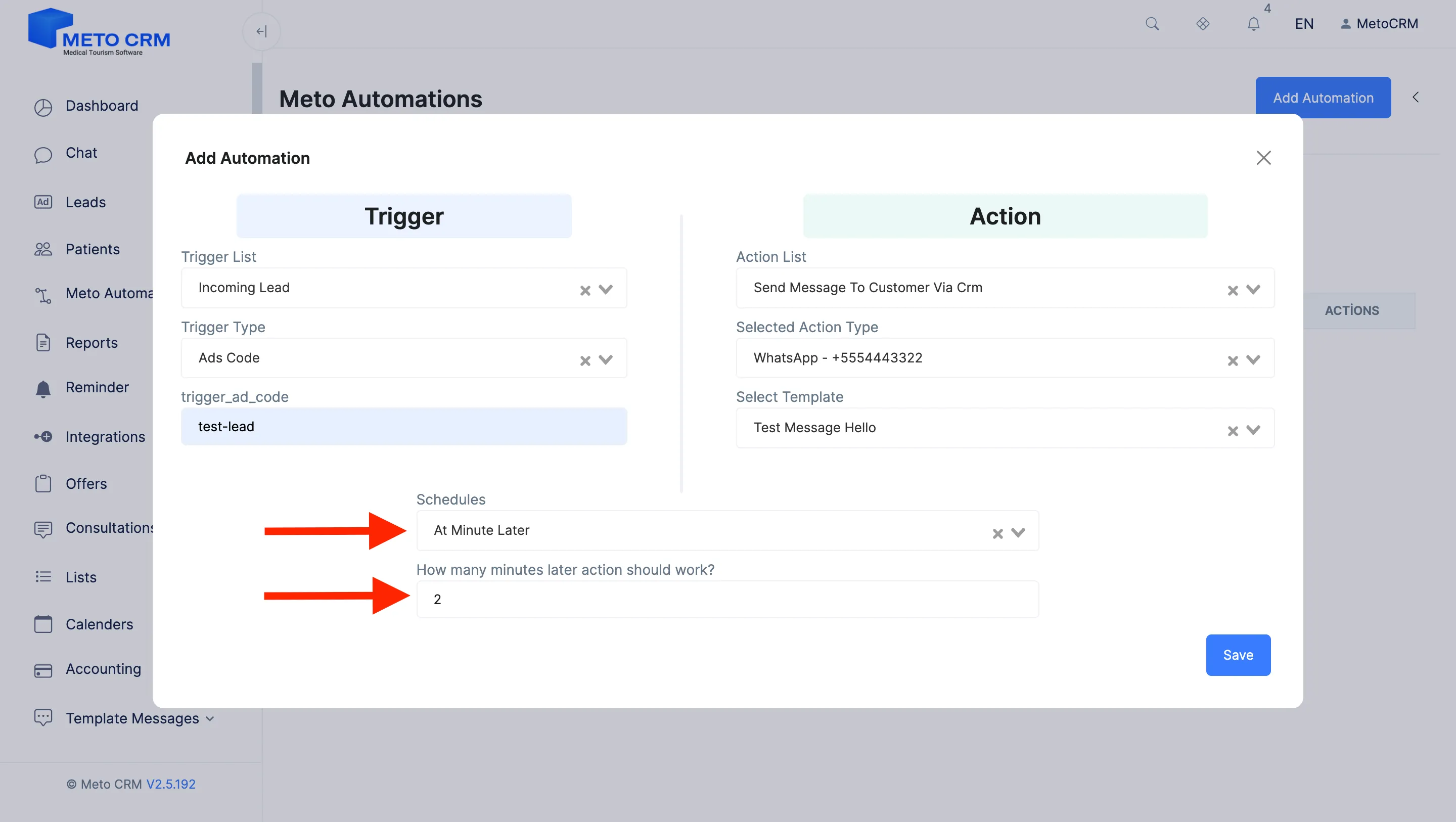
- Meto automation is ready! You've selected the triggering event and the action to occur during the event. Now, click on the " Save " button in the bottom right corner and send the automatic first message to incoming leads.
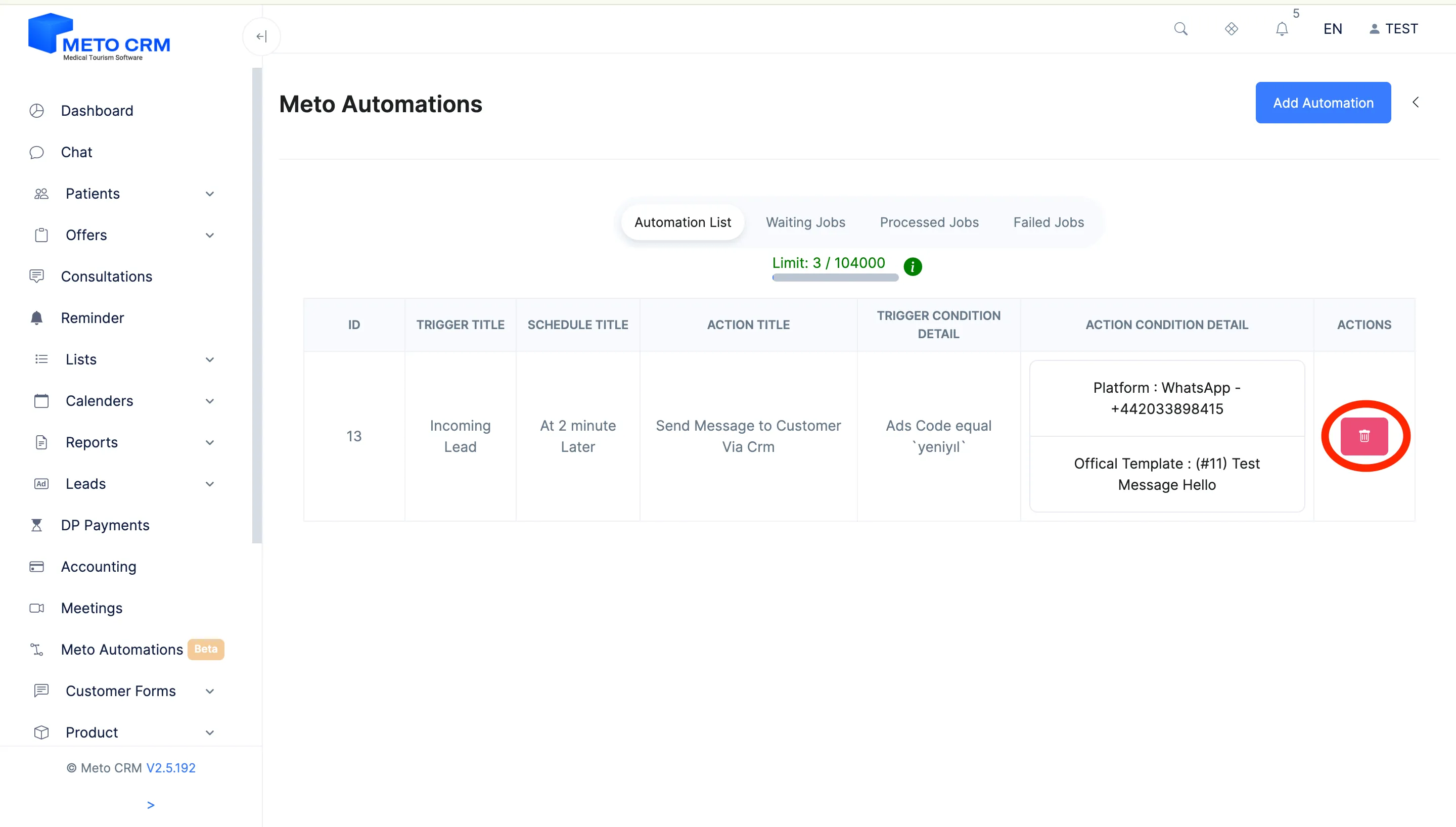
- If you want to delete the existing Automation, click the Red Delete button.
Tips and common mistakes
- Careful The ad code must match character for character. "hair-transplant-en" on the form and "hair_transplant_en" in the automation means the automation never fires — and never reports an error either.
- Tip Choose the timing deliberately: "in time" sends immediately, the delayed option waits. If you would rather not message a lead that arrives at 3am, the delayed setup is the better fit.
- Careful The 24-hour rule applies to automations too on an official WhatsApp line. If the patient has never written to you, free text will not go out — the automation must use an approved template.
Frequently asked questions
I built the automation but no message goes out.
Check in order: does the ad code match exactly, is the line connected and working, and on an official line are you hitting the 24-hour rule. Those three explain almost every case.
Can two automations fire on the same lead?
Every automation whose trigger matches will run. Two automations on the same ad code means the patient gets two messages — review the existing list before adding another.
Can I pause an automation?
When a campaign ends, editing the automation to disable it is safer than deleting it — you will want the same setup for the next campaign.