


Channels and messaging
How to integrate the official WhatsApp API with MetoCRM
Connecting an official WhatsApp number using a Twilio Account SID and Auth Token, then assigning user groups and testing.
Where to find it
IntegrationOfficial WhatsApp API
The official WhatsApp Business API turns your clinic's number into a business line verified by Meta. It buys you two things: with approved templates you can open a conversation outside the 24-hour window, and because the number is not tied to a phone session the connection does not drop.
MetoCRM builds this connection through Twilio, so there are three jobs in order: applying for the number, creating a messaging service, and the MetoCRM-side step on this page.
Before you start
- You need an approved Twilio WhatsApp Sender — if you do not have one, follow the application guide first.
- Copy your Account SID and Auth Token from the Twilio console.
- Decide which user groups will work on this number.
Step by step
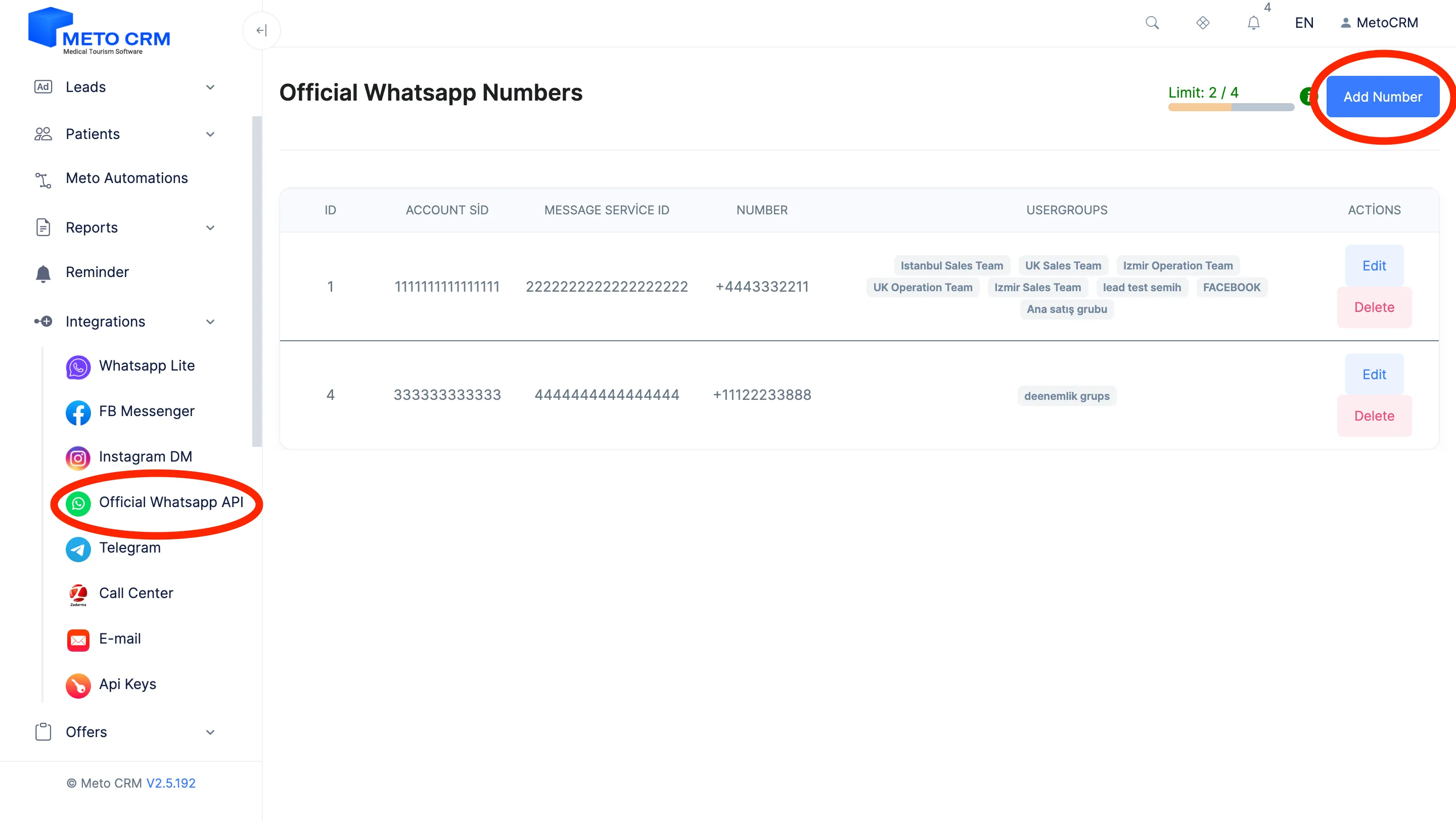
- Access the MetoCRM panel. Click on Integration > Official WhatsApp API in the left main menu. Click on the " Add Number " button in the Official WhatsApp Number section.
- Log in to your Twilio account to obtain the Account SID and Authentication Token (Auth Token).
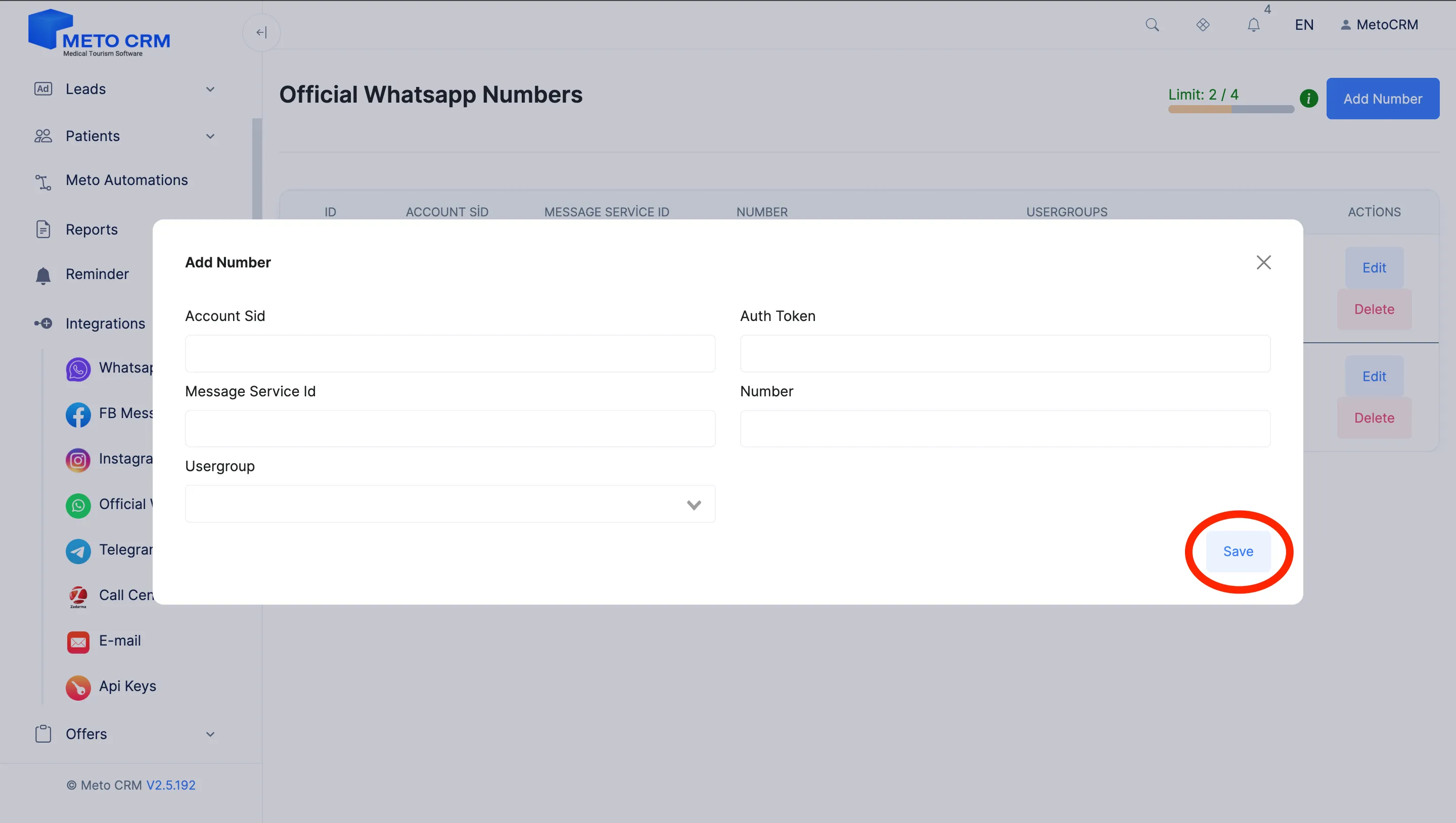
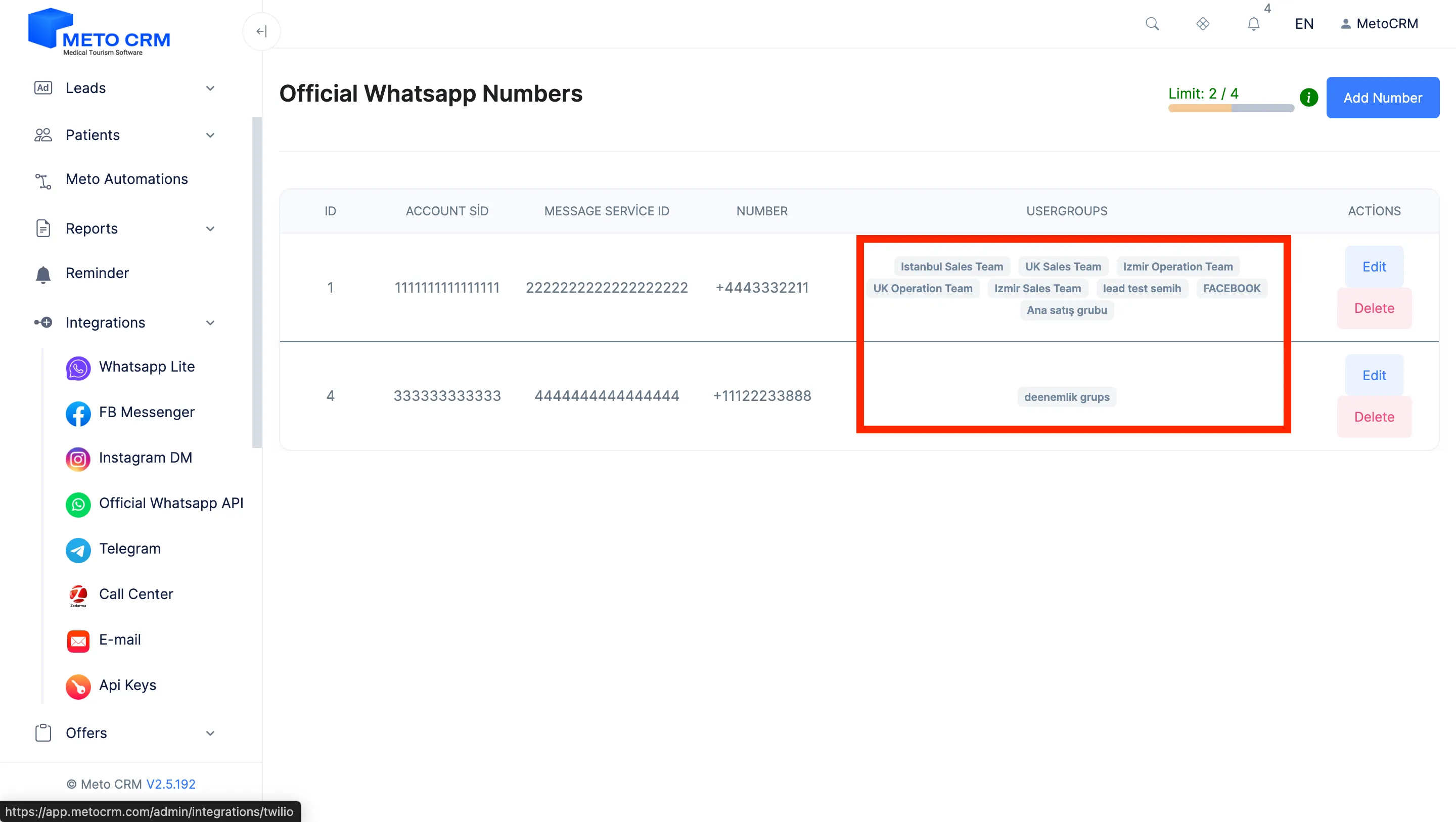
- In the Twilio dashboard, click on your name in the top left corner to navigate to your account's main page. Copy the Account SID from the section labeled "Account SID" and paste it into the relevant field in the Meto panel. For the Message Service Id information in the Meto panel, go to the Twilio dashboard, then click on the "Messaging" button in the left menu, and then click on "Services". Copy the SID number of the service you previously created and paste it into the relevant field in the Meto panel. Enter the Twilio verified number into the "Number" field in the Meto panel (write it in this format: + country code). Finally, in the "User Group" field in the Meto panel, select the groups you want WhatsApp to access. To complete the process, click on the " Save " button. For "How to Create a User Group" please refer to:
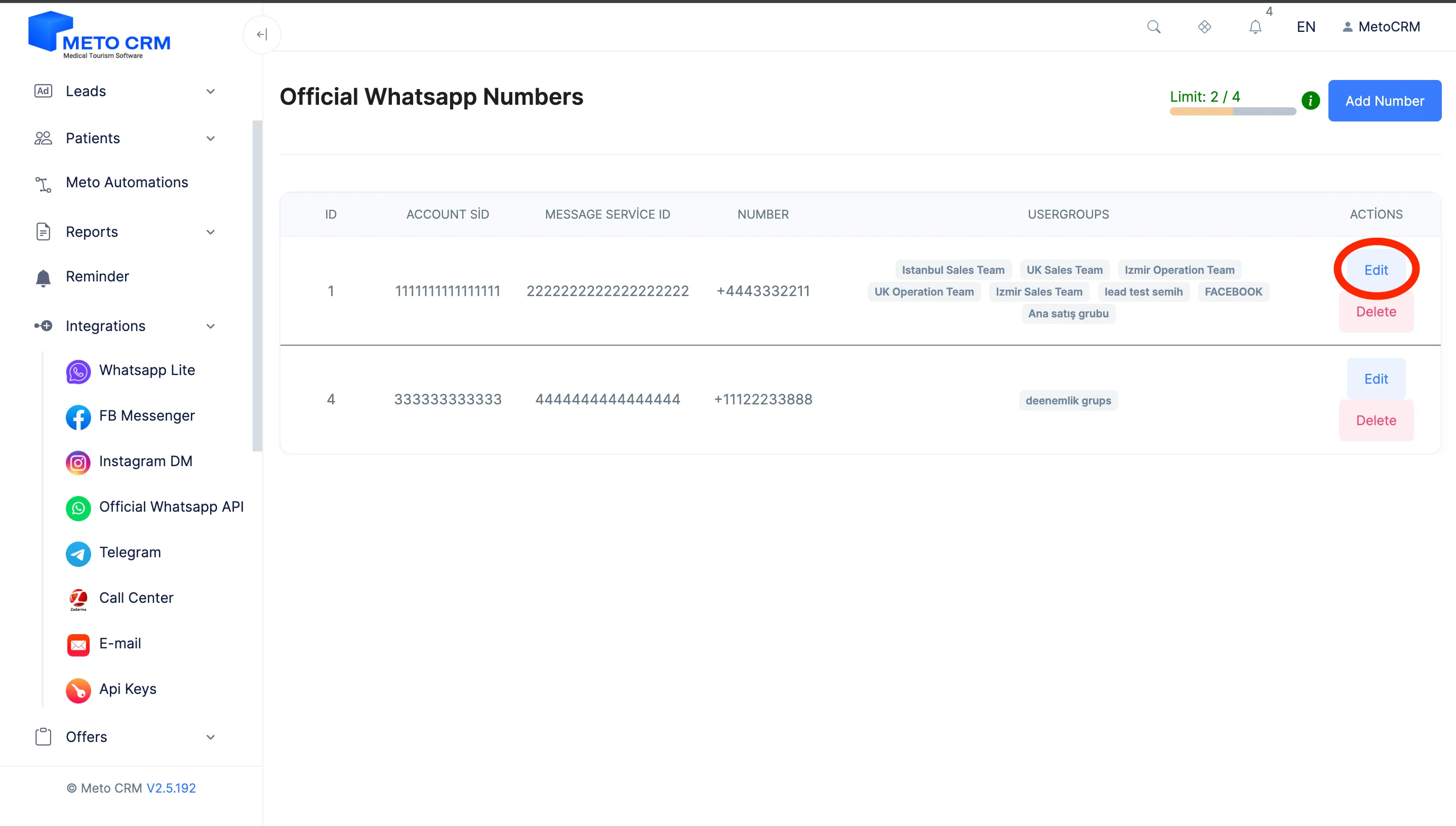
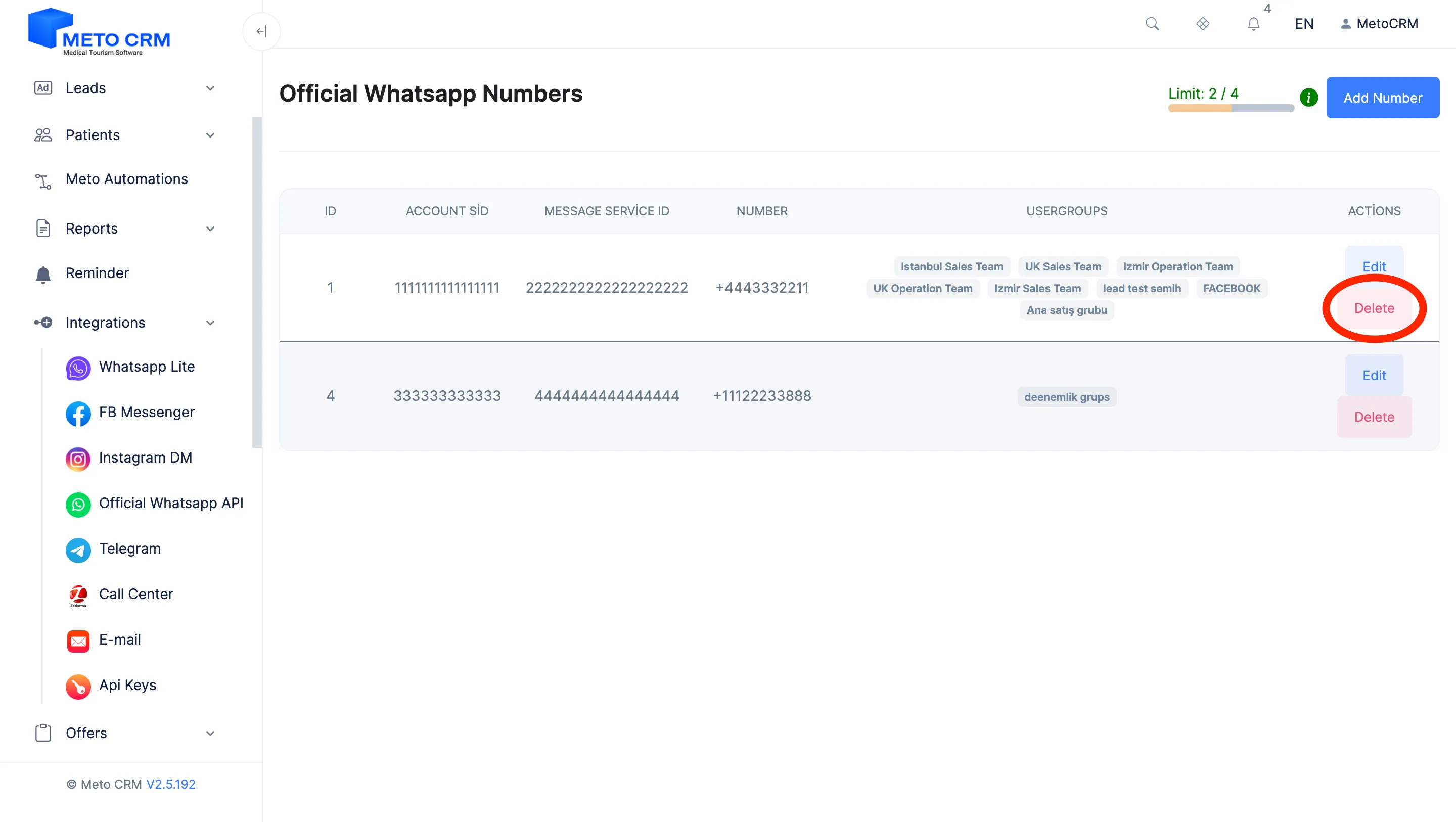
- If you wish to make changes within the connected Official WhatsApp API, click on the " Edit " button.
- If you want to delete the connected Official WhatsApp API, click on the " Delete " button.
Tips and common mistakes
- Careful The Auth Token is a password. Do not share it in screenshots or over WhatsApp and e-mail; if you suspect it leaked, rotate it in the Twilio console immediately.
- Careful The 24-hour rule: once 24 hours have passed since the patient's last message you cannot send free text, only an approved template. Most "my message won't send" reports are this.
- Tip Test both inbound and outbound messages after connecting. Outbound working on its own hides a mis-configured webhook — if nothing arrives, the problem is the webhook URL on the Twilio side.
Frequently asked questions
What happens to my old WhatsApp Lite conversations?
History on the patient card is not deleted. You cannot, however, run the same number as both Lite and official API at once — remove the Lite connection when you switch.
I cannot send a message and I get no error.
Check the 24-hour rule first: past that window only approved templates go out. Then confirm in the Twilio console that the Sender is active and attached to your messaging service.
Can I use a provider other than Twilio?
MetoCRM's official WhatsApp integration runs through Twilio. If you need a different BSP, talk to sales.
What if I do not assign a user group?
The line stays unowned and new-chat notifications go to every sales manager — the widest possible spread. Assign the relevant group if you want team discipline.