


System and permissions
How to view notifications
Opening system notifications from the bell icon in the top right of the panel.
Where to find it
Notifications
Notifications collect the events that concern you: a new chat, a lead assigned to you, a record landing on your team. Open them from the bell icon in the top right.
Who receives which notification follows the visibility rules — and nearly every "I get no notifications" report traces back to that.
Step by step
- Click on the Bell icon in the upper right corner of the page.
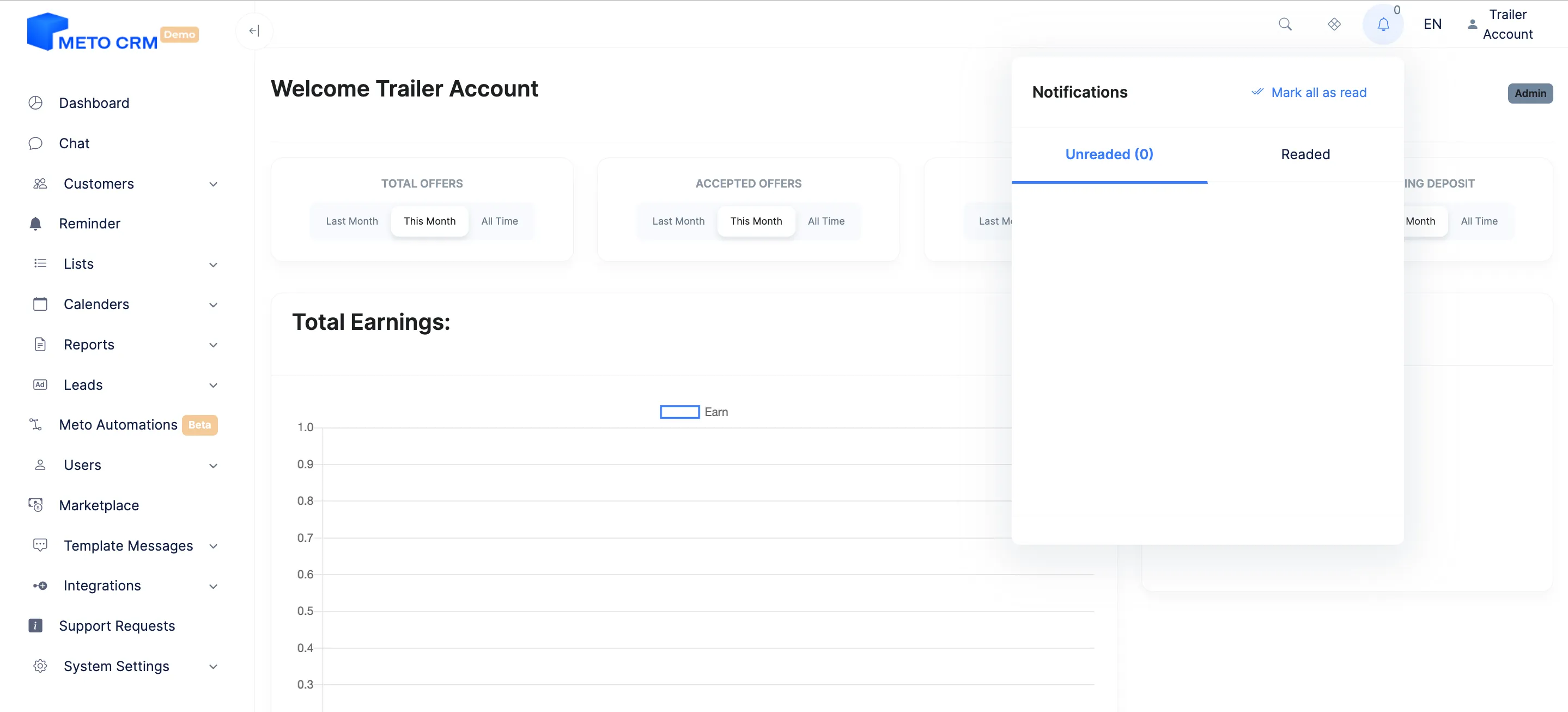
- You can see all the notifications on the screen that opens. Click anywhere on the page or on the bell icon to close it.
Tips and common mistakes
- Careful Notifications for new pool chats — ones nobody has claimed — go to the relevant team managers. To receive them you have to be a group manager on that line's team, or claim the chat.
- Tip System messages created by bulk operations do not push instant notifications (to avoid thousands at once); an open chat screen shows them on its next refresh.
Frequently asked questions
Why do I not get notified about new WhatsApp messages?
New pool chat notifications go to the relevant team managers. Either an admin adds you to that team as a group manager, or you claim the chat.
Can I choose which events raise a notification?
Tenant-wide preferences are set on the notification settings screen under System Settings.
I get no notifications from a private mailbox.
If "hide from others" is on for that mailbox, only its owner and Admin/Moderator receive its notifications. See connecting e-mail.